
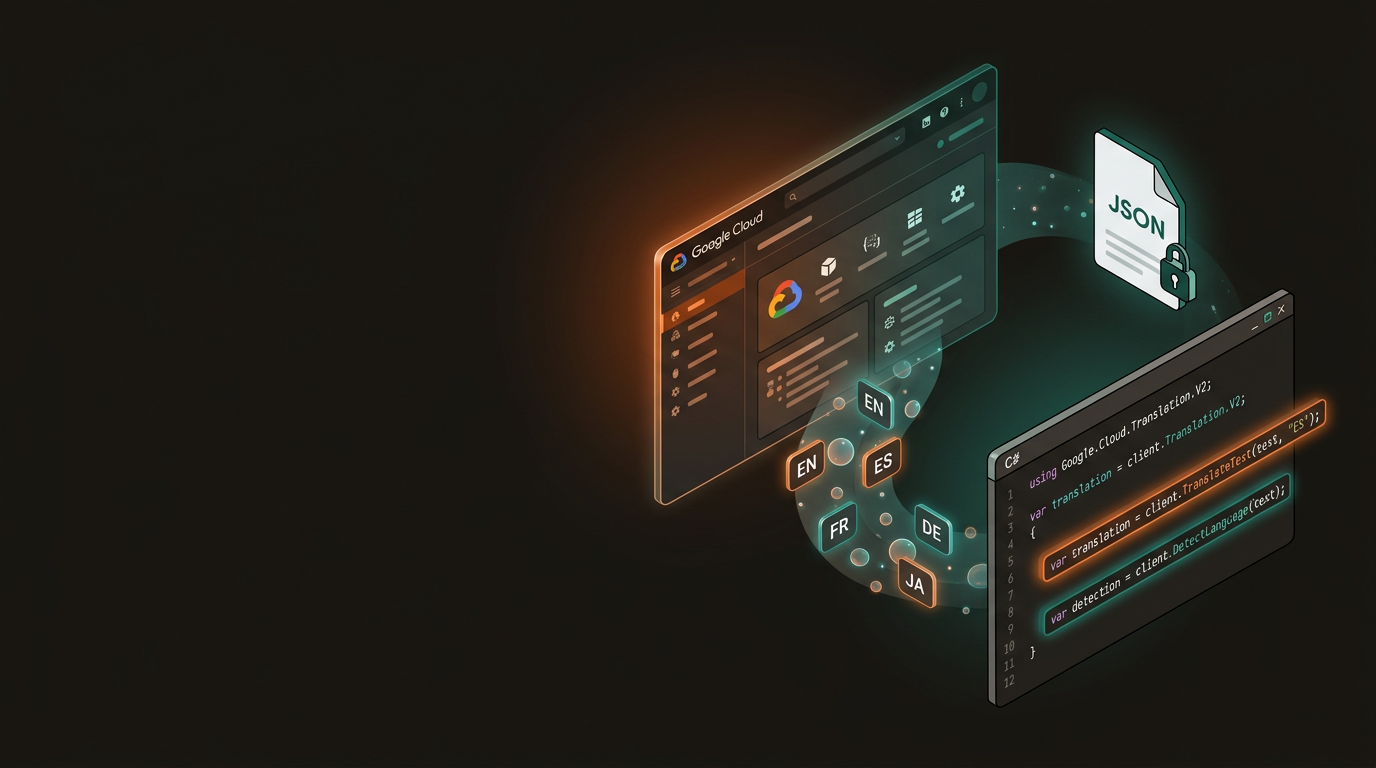
Google Translate API in C#Multilingual translation from first principles
The Google Cloud Translation API gives any C# application access to over 100 languages — detect, translate, and round-trip text with a few lines of code. This guide walks through cloud setup, authentication, and a working .NET implementation you can run today.
Three things must be in place before writing any code.
Cloud Account
A Google Cloud account with billing enabled — a free trial is available for new accounts with $300 in credits.
C# Knowledge
Basic familiarity with C# and .NET — console apps, NuGet package management, and solution files.
Development Environment
Visual Studio 2022 (Windows/Mac) or VS Code with the C# Dev Kit extension installed.
Before writing any C# code, the Translation API must be enabled in your Google Cloud project and a service account created for authentication.
Create a Google Cloud Project
Go to the Google Cloud Console, click the project dropdown at the top, select New Project, enter a name, and click Create.
Enable the Cloud Translation API
Within your project, navigate to APIs & Services → Library. Search for Cloud Translation API, select it, and click Enable.
Create a Service Account
Go to APIs & Services → Credentials, click Create Credentials → Service Account, fill in the name and description, then assign the Project → Editor role (or a more restrictive role if preferred) and click Done.
Download the JSON Key File
Find your service account in the credentials list, click the three-dot menu, select Create Key, choose JSON, and click Create. A .json file will download — this is your authentication credential.
Start with a new Console App — either .NET Core or .NET Framework works, though .NET 6+ is recommended for new projects.
dotnet new console -n GoogleTranslateDemo
Install the NuGet package via the Package Manager UI, or from the terminal:
dotnet add package Google.Cloud.Translation.V2
Once installed, copy your downloaded JSON key file into the project directory. In Solution Explorer, right-click it → Properties → set Copy to Output Directory to Copy if newer. This ensures the key file is available alongside the compiled binary.
Replace the contents of Program.cs with the following. It covers authentication, language detection, and translation in both directions.
using System;
using Google.Cloud.Translation.V2;

namespace GoogleTranslateDemo
{
    class Program
    {
        static void Main(string[] args)
        {
            // Point the SDK at your service account key file
            // For production, set this at the OS level instead
            Environment.SetEnvironmentVariable(
                "GOOGLE_APPLICATION_CREDENTIALS",
                "path-to-your-json-key-file.json"
            );

            TranslationClient client = TranslationClient.Create();

            string text = "Hello, how are you today?";

            // Detect the source language
            var detection = client.DetectLanguage(text);
            Console.WriteLine(
                $"Detected Language: {detection.Language} " +
                $"(Confidence: {detection.Confidence:P})"
            );

            // Translate to Spanish
            var translation = client.TranslateText(text, "es");
            Console.WriteLine($"\nTranslated to Spanish: {translation.TranslatedText}");

            // Translate back to English, specifying source language explicitly
            var translatedBack = client.TranslateText(
                translation.TranslatedText, "en", "es"
            );
            Console.WriteLine($"\nTranslated Back to English: {translatedBack.TranslatedText}");
        }
    }
}
Here is what each part of the API does:
Authentication
- Set
GOOGLE_APPLICATION_CREDENTIALSto the path of your JSON key file TranslationClient.Create()reads that variable automatically- For production, set the environment variable at the OS level — not in code
API Methods
DetectLanguage(text)— returns an ISO 639-1 language code and a confidence scoreTranslateText(text, target)— translates from auto-detected sourceTranslateText(text, target, source)— explicit source language for accuracy
Save all files and press F5 in Visual Studio, or run dotnet run from the terminal. With a valid key and a working internet connection, the output should look like this:
Detected Language: en (Confidence: 99.00%)

Translated to Spanish: Hola, ¿cómo estás hoy?

Translated Back to English: Hello, how are you today?
A 99% confidence on English is typical for common phrases. Spanish characters — such as the inverted question mark — require your terminal to be in UTF-8 mode. On Windows, run chcp 65001 in Command Prompt if characters appear as ????.
Three categories of issues account for most problems when first integrating the Translation API.
Authentication & Quota Errors
- Confirm
GOOGLE_APPLICATION_CREDENTIALSpoints to the correct JSON file path - Verify the service account has the Cloud Translation API User role assigned
- Check Google Cloud Quotas if you receive a 429 response — daily character limits apply on free tier
- Request a quota increase via the Console for production workloads
Encoding & Output Issues
- Run
chcp 65001in Windows Command Prompt to switch to UTF-8 mode - Use a terminal font that supports the character set of your target language
- For production, write translated output to files rather than the console to sidestep font limitations
- Avoid hardcoding the JSON key path — use environment variables or a dedicated secrets manager
Need to go further — batch translation, glossary support, or custom AutoML models? GeoSaffer covers cloud API integration, .NET backend patterns, and developer tooling in depth.
Explore more GeoSaffer guides →