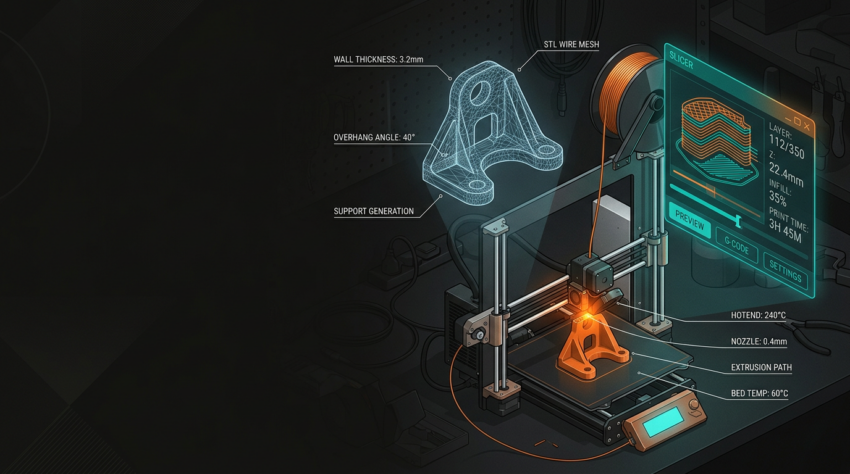
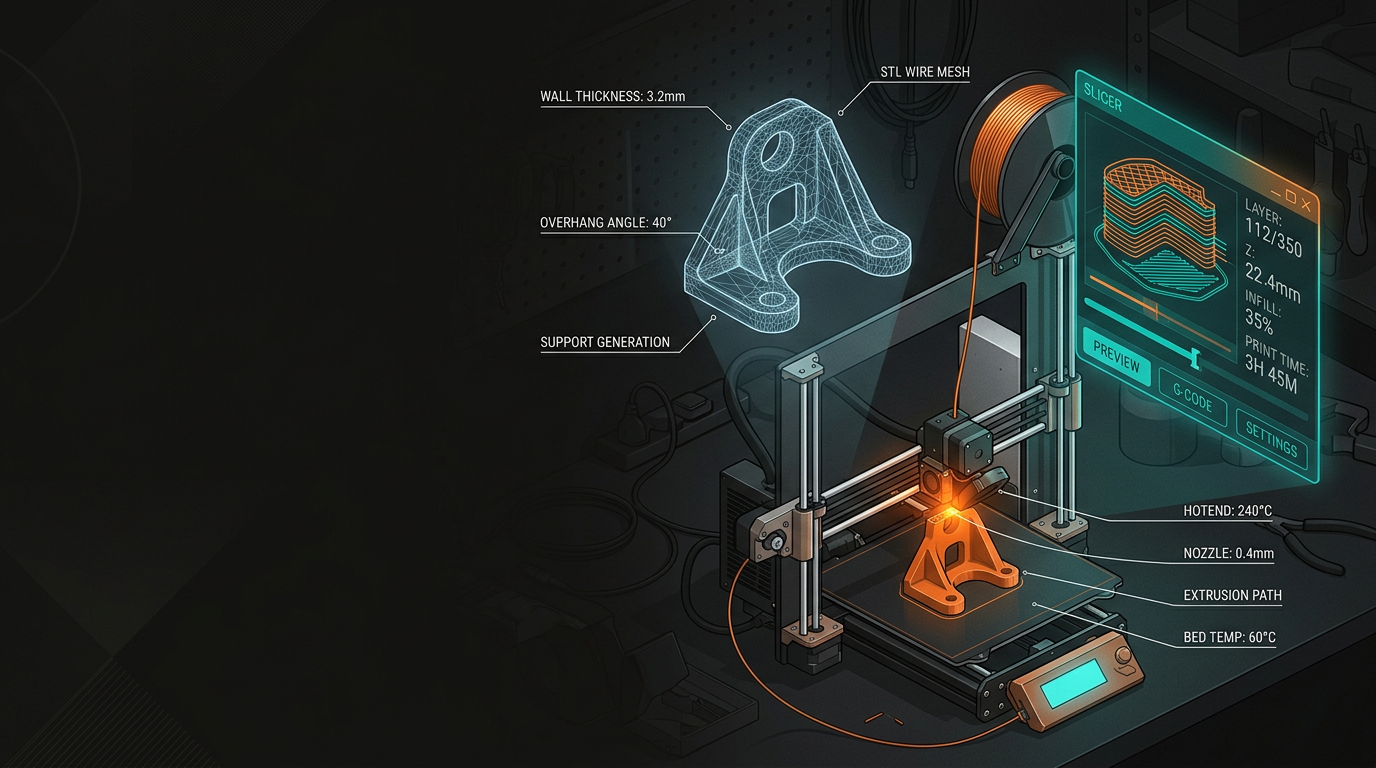
3D Printing · File Preparation · Beginner’s Guide
From CAD to Print: A Beginner’s Guide to
3D Printing File Preparation
File preparation is where most 3D printing problems start — long before the machine does anything. Once you understand what’s happening under the hood, most failures become straightforward to prevent.
Understanding File Formats
Every 3D printing workflow begins with exporting your model from CAD into a format the slicer can read. The format you choose affects what data survives that conversion — and some gaps will silently break your print.
The default format. Converts your model into triangles. Carries no scale information — always verify units on export.
Supports colour and texture data. Useful for visual models; no practical advantage over STL for functional parts.
A modernised replacement for STL. Retains scale, units, colour, and multi-material data. Use it whenever your slicer supports it.
A 2D vector format — belongs in laser cutting, not 3D printing. Sometimes used to extrude 2D profiles inside CAD software.
Designing for Printability
CAD software lets you design things that are geometrically perfect and physically unprintable — and it won’t warn you. Know these constraints before you finalise anything.
Wall Thickness
- FDM: minimum 1.2 mm, ideally a multiple of nozzle diameter (0.4 mm typical)
- Resin: walls under 0.8 mm become brittle and warp during post-cure
Overhangs & Supports
- Features overhanging more than ~45° need support structures
- Use chamfers and gradual slopes to eliminate supports by design
- Consider tearaway geometry vs auto-generated supports
Tolerances & Fit
- A 10 mm CAD hole often prints slightly undersized
- Add 0.2–0.3 mm clearance to mating dimensions for FDM
- Always print a test peg-and-hole before a full run
Scale & Units
- STL carries no unit information — mm vs inches is a silent 25× mismatch
- Check units on every export — it takes five seconds and saves hours
FDM vs Resin: Different Rules
FDM and resin printers read the same file formats but need different preparation decisions. Treat them as separate workflows — a file optimised for one will often fail on the other.
FDM File Prep
- Layer height: 0.2 mm standard, 0.1 mm for finer detail
- Infill: 15–20% for visual parts, 40%+ for structural
- Orientation directly affects strength, surface finish, and support volume
- More perimeters equals a stronger part
Resin File Prep
- Supports are never optional — poor placement fails prints and damages the FEP film
- Hollow large models; add 2–4 mm drain holes for uncured resin
- Calibrate exposure for each resin brand and printer model
- Anti-aliasing settings affect edge sharpness more than layer height alone
Common Mistakes
These are the errors that show up across almost every beginner’s first few prints — and most are entirely invisible until something fails mid-job.
Non-Manifold Geometry
Holes in the mesh, overlapping faces, inverted normals. Fix with Meshmixer, Netfabb, or PrusaSlicer’s built-in repair tool before slicing.
Unit Mismatch on Export
Metres vs millimetres is the classic trap — especially coming from architectural or civil engineering software like Revit or Civil 3D.
Ignoring Print Orientation
FDM parts are weakest along the Z axis. Orient so the primary load runs parallel to the layers, not perpendicular to them.
Designing to Exact CAD Tolerances
Snap-fit parts designed to exact CAD dimensions almost never work on the first print. Prototype, measure, adjust — then commit to the full run.
Skipping the Slicer Preview
Step through the layer-by-layer view before every job. Missing walls and bad support placements show up here — before they waste filament or resin.
Free Software to Get Started
You don’t need paid software to produce good prints. These tools cover the full pipeline from geometry to gcode — most are free for non-commercial use, and the ones that aren’t have generous hobbyist licences.
GeoSaffer works with clients across New Zealand — from single prototypes to batch production runs through Plastixel, with file review built into every job. If you’re not sure your file is print-ready, send it through before committing to a run.
Get a free quote →